

Get started
The setup wizard step by step — individual versus organization, connecting a drive, installing the Word add-in, and your first upload.
Goal: in about 10 minutes, sign in, set up your account, and get a first document reviewed. Only two of the seven steps are required. Everything else can wait, and this page says so at each step.
Before you begin
Have these ready:
- The invitation or sign-in method your organization provided. If you were invited to an organization, use that invitation rather than signing up fresh — a separate personal account with the same email address is a different identity, and it will not inherit your organization’s plan.
- A document to try. Use a
.docxor.pdf, up to 25 MB. The wizard’s file picker also offers.docand.txt, but those are rejected when they reach the server — convert to.docxfirst. - Your Microsoft or Google account, if you plan to connect a drive or install the Word add-in. Both steps are skippable, so you do not need this to finish.
If BriefCatch asks you to verify your email, complete that before returning. Some steps stay unavailable until verification clears.
Which steps you see depends on the account you sign up with. An organization invitation already answers some of the questions below, and the wizard skips those for you.
Which path are you on?
The second step of the wizard, How will you use BriefCatch?, forks, and the rest of your setup follows from it.
| If you are… | Choose | What changes |
|---|---|---|
| Setting BriefCatch up for yourself | Individual | You own your subscription, credits, and documents. No teammates, no roles. |
| Setting it up for a team | Organization | You name an organization and become its owner. You can invite teammates and share a credit pool. |
| Joining a team that already invited you | Already decided | The wizard skips this step and shows “You’re already part of an organization, so this is set for you.” |
If you pick Individual now and need a team later, you can create an organization without starting over. See Plans and licenses.
The setup wizard
Welcome (under a minute)
A short orientation before anything is configured. Nothing to decide yet.
How will you use BriefCatch? (1 minute)
Choose Individual or Organization, using the table above. If you arrived through an organization invitation, this step is already decided for you.
Create Your Organization — organization path only (1 minute)
Name the organization. The creator becomes its owner, which is the role that carries billing and the subscription. See Roles and permissions.
Why this matters: the owner is the only role that can change the plan or payment method later, so set this up under the account that should hold it.
Connect Your Drive — optional (2 minutes)
Connect Google Drive or OneDrive via OAuth, for a personal account or for the organization’s shared drive. Skip is always available, and you can connect a drive later from Integrations.
Why this matters: connecting a drive lets you pick documents without downloading and re-uploading them. Convenience, not capability — nothing is unavailable without it.
Install BriefCatch for Word — optional (3 minutes)
Install from AppSource so you can review inside Microsoft Word using the same account and the same engine as the web.
Why this matters: install it from AppSource under the same account you use on the web. A different Microsoft or Google identity is the most common reason the add-in cannot reach an account afterwards.
Upload a Document (2 minutes)
Upload a document to see the product work end to end. Supported types are .docx and .pdf,
up to 25 MB.
Why this matters: this is the one step worth not skipping. It is the fastest way to see what BriefCatch flags on writing you already know.
Invite Your Team — organization path only, optional (2 minutes)
Add teammates by email now, or skip and invite them later from Teams and organizations.
Every optional step says so outright. You can reach a working account without a connected drive, the Word add-in, or any invited teammates, and pick each of those up later without repeating the wizard.
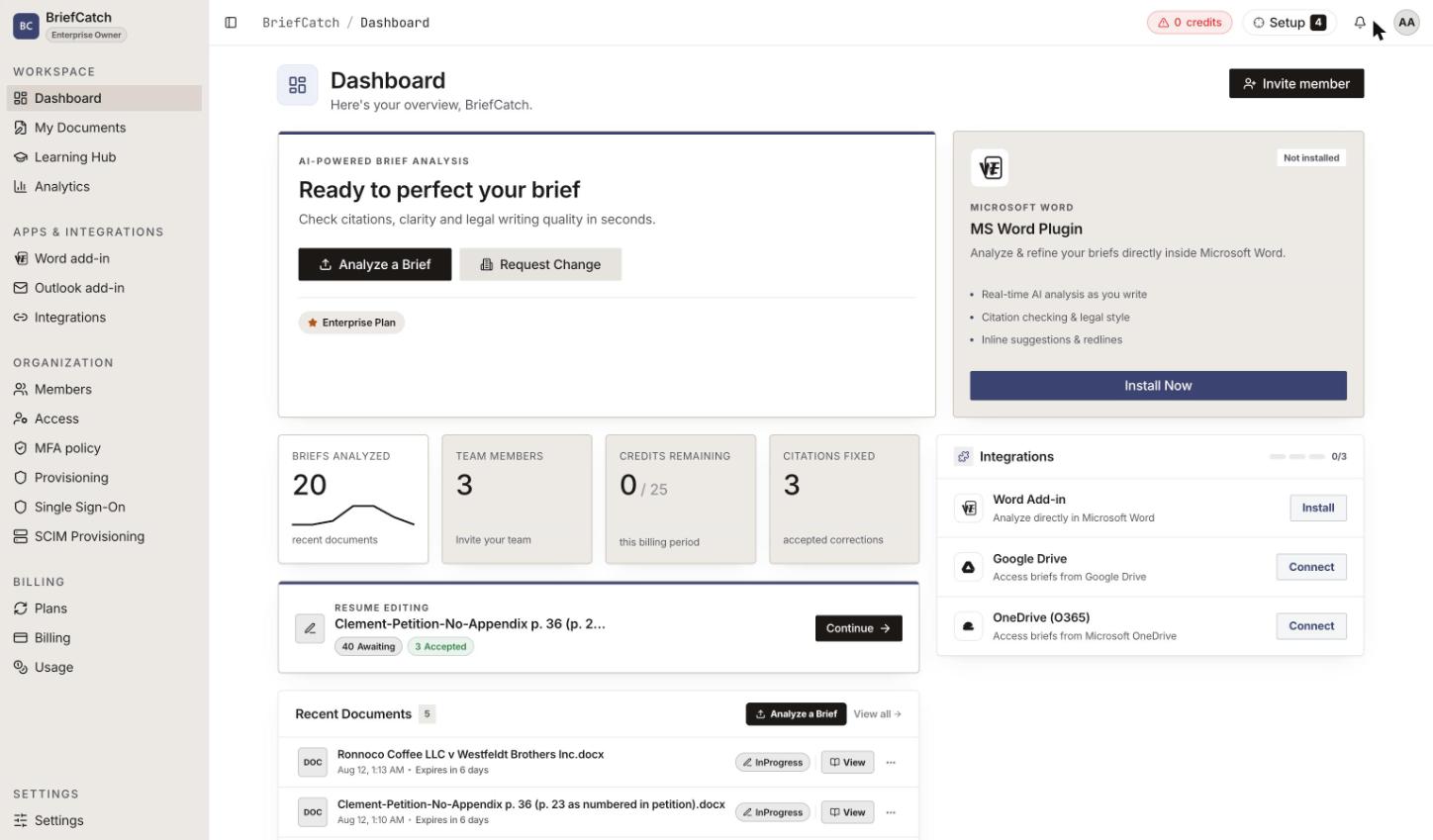
Completing your first review
Once the wizard uploads a document, or once you skip to the product directly:
- Open My Documents.
- Select Upload and choose a supported file.
- Review the storage and retention choice — where the file lands and how long it is kept. See My Documents.
- Wait for analysis to finish, then open the editor.
- Work through the suggestions one at a time before reaching for a bulk action.
Why work one at a time first: it gives you a feel for what BriefCatch flags before you let it change many passages at once. Bulk actions are faster once you trust the pattern, and harder to unpick before you do.
If something in the wizard fails
- “The sign-in popup was blocked. Continue in this tab instead.” — your browser blocked the OAuth popup for the drive connection. Use the in-tab flow the wizard offers instead of retrying the popup.
- “Connection timed out” or “Connection canceled.” — the OAuth flow did not complete. Retry, or skip and connect later from Integrations.
- “Unsupported file type” or “File is too large” — the upload step has the same
.docx/.pdfand 25 MB limits as the rest of the product. Convert a.docto.docxand try again. - “Organization membership is still being confirmed” — an invitation acceptance is still processing. Wait a moment and retry rather than restarting the wizard.
- “Upgrade to the Organization plan to continue” — a step needs a capability your current plan does not include. See Plans and licenses.
Skipping a failing optional step is always safe. The dashboard keeps offering it.
Next steps
- My Documents — uploading, storage, and retention
- Review a document — running a review and reading the editor
- Work with suggestions — accepting, rejecting, and ignoring
- Roles and permissions — why a control might be missing
- Word add-in — if you skipped the install